creating google ads data transfer in bigquery
Google Ads offers a vast amount of data, but efficiently managing and analyzing it can be challenging. BigQuery not only helps with analysis but also streamlines ingestion of Google Ads data.
With recent updates, you have greater control over what you import by creating custom reports using Google Ads Query Language (GAQL).
This post walks you through setting up a custom Google Ads data transfer in BigQuery.
Table of contents
What’s New
In March 2025, Google announced that BigQuery Data Transfer Service supports custom reports for Google Ads. Previously, a full Google Ads data transfer created over 100 tables and 100 views, which often led to unnecessary ingestion and storage costs, since most users need only a handful of tables.
With the new feature, you can specify exactly which data you want by writing GAQL queries.
Benefits:
- Efficiency: Only relevant data is transferred, reducing storage costs.
- Flexibility: You define custom reports by selecting only the fields you need.
- Simplicity: A single table and view are created per transfer, so data stays manageable.
When you set up a Google Ads data transfer, BigQuery creates one table and one view per transfer:
- Table (
p_ads_tableName_yourCustomerID): Physical table that stores the data imported from Google Ads. - View (
ads_tableName_yourCustomerID): Virtual table that references the underlying data. Views do not store data; you query them to get structured reports. View data does not appear in the BigQuery preview until you run a query.
How to Set Up a Google Ads Data Transfer
Follow these steps in the Google Cloud Console:
1. Create a Dataset in BigQuery
- Open BigQuery and select your project.
- Create a new dataset to store the Google Ads data.
2. Set Up the Data Transfer
- Go to BigQuery Data Transfers and click Create Transfer.
- Choose Google Ads as the source.
3. Configure Transfer Settings
- Google Ads customer ID: Enter your customer ID.
- Report type: Select Custom Report.
- Table name: This drives the names of the table and view (
p_ads_yourTableName_yourCustomerIDandads_yourTableName_yourCustomerID). - GAQL query: Define the data you want. The transfer uses a simplified GAQL: do not include
WHEREorORDER BY. Only list the resources, segments, and metrics.
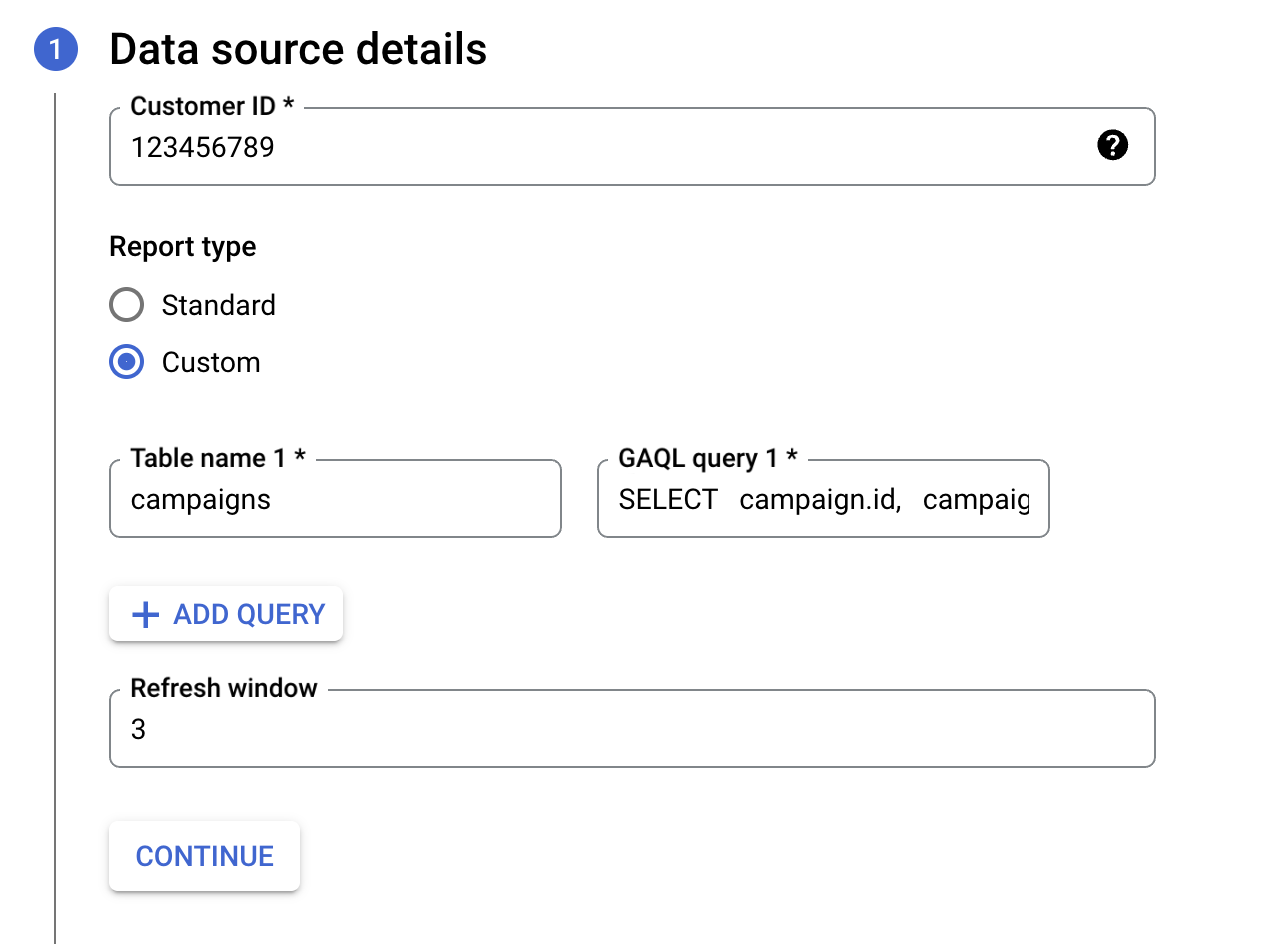
Example GAQL for a campaign-level report:
SELECT
    campaign.id,
    campaign.name,
    customer.id,
    customer.descriptive_name,
    campaign.status,
    segments.date,
    metrics.all_conversions,
    metrics.clicks,
    metrics.cost_micros,
    metrics.ctr,
    metrics.impressions,
    metrics.interactions
FROM campaign- Refresh window: Default is the last 7 days; you can set up to 30 days.
- Destination: Choose the dataset you created in step 1.
- Transfer name: Give the transfer a clear name.
- Schedule: Run immediately or set a schedule.
- Service account: Use the default; no need to create a new one.
- Notifications (optional): Enable if you want alerts on transfer status.
- Click Save to create the transfer.
If you run it immediately, data will start loading into BigQuery. When the run completes, you can query the new table and view in your dataset.
How to Backfill Google Ads Data
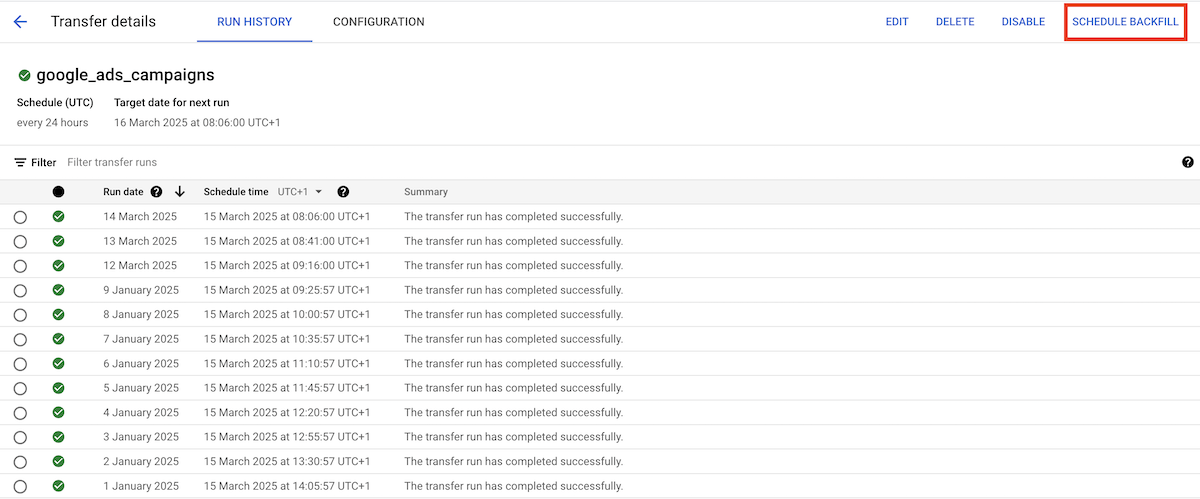
To load historical Google Ads data, use backfill. You can request a date range, and the service will pull past data. Note that the transfer runs every 35 minutes and processes one day at a time, so backfilling a long period can take a while.
To schedule a backfill:
- In Data Transfers, open the transfer you created.
- Click Schedule Backfill.
- Choose Run for a date range, select the range, and confirm.
Once the transfer and any backfill are complete, you can query both latest and historical Google Ads data in BigQuery. With ad performance metrics in one place, you can run analyses, build custom reports, and combine the data with other sources for deeper insights.