server-side gtm domain mapping with load balancer
If you are deploying server-side GTM on Google Cloud Run and need a custom domain (e.g. a subdomain for your tagging server), you may notice that Cloud Run does not offer direct custom domain mapping via a Load Balancer in the UI. Google’s recommended approach is to use a global external Application Load Balancer.
I wrote a shell script that automates connecting a custom domain via a Google Cloud Load Balancer to your sGTM Cloud Run service. With it you can:
- Create a new Load Balancer setup for server-side GTM.
- Add additional domains to an existing setup created by the script.
Tip: To deploy server-side GTM on Google Cloud Run first, see the manual deployment guide.
Disclaimer: Use this script at your own risk. Load Balancers are paid services on Google Cloud. I am not responsible for any costs or misconfigurations.
Step-by-Step Guide
1. Open Your Cloud Run Project
Go to the GCP Console and open the project where your sGTM Cloud Run service is deployed. Open Cloud Shell and ensure you are in the correct project.
2. Run the Script
Run the following in Cloud Shell:
bash -c "$(curl -fsSL https://raw.githubusercontent.com/selnekovic/sgtm-load-balancer-shell-script/main/load_balancer_shell.sh)"Follow the prompts and provide:
- Domain: The custom (sub)domain you want to map (e.g.
gtm.yourdomain.com). - Backend Service Name: The name of your production sGTM Cloud Run service.
- Region: The region where the Cloud Run service is deployed.
You can find the backend service name and region in the Cloud Run dashboard.
If Google Cloud returns errors or timeouts, run the script again with the same inputs. The script skips resources that already exist, so only missing parts will be created.
3. Create a New Load Balancer
When prompted, choose Option 1: Create a new Load Balancer.
After the script finishes, it will show an IP address. Add this IP to your domain’s DNS as an A record for the subdomain you specified. Propagation usually takes under 30 minutes; once DNS is active, sGTM will be reachable on your custom domain.

(Optional) Add Fallback Routing
You can refine routing after the Load Balancer is created:
- Go to Load Balancing → select your load balancer → Edit → Routing rules.
- Use Advanced host and path rules.
- Add a rule to redirect traffic for unmatched hosts to a default domain or path.
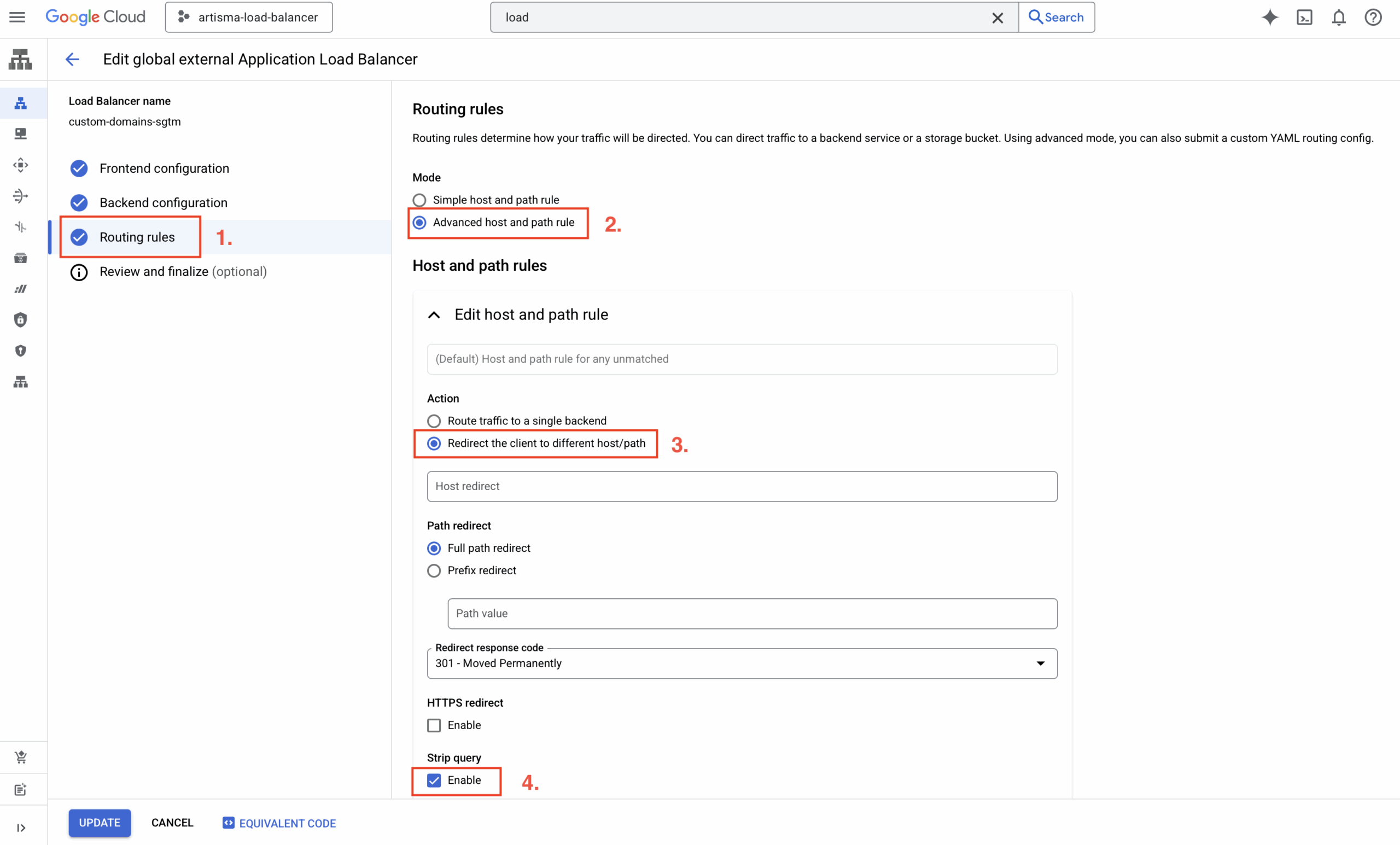
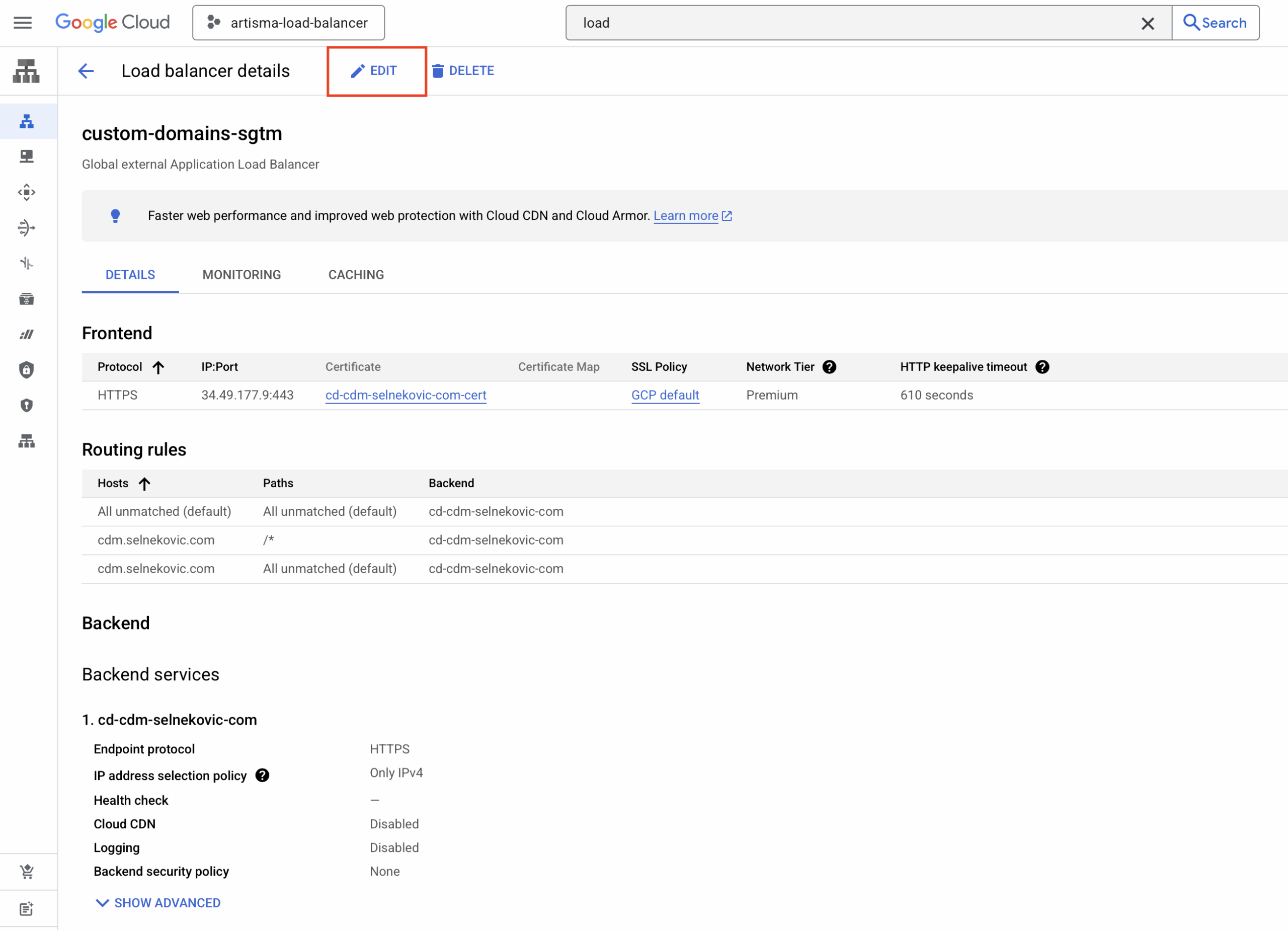
This helps handle typos or unexpected hostnames and aligns with how Google’s integration was previously configured.
4. Add More Domains
To attach another domain to the same setup, run the script again. Enter the new domain, the same backend service name, and region, then choose Option 2: Add new domain.
Add the script’s output IP to the new domain’s DNS as an A record.
Note: Adding domains this way works only if the Load Balancer was originally created with this script; reusing the same setup keeps configuration consistent.
Code Explanation
Below is the explanation of the gcloud commands used in the script, along with short descriptions for each function.
create_global_ip()
Creates a global external IPv4 address using the premium network tier. This IP address is used later to create the forwarding rule and map a custom domain to the load balancer.
create_global_ip() {
    gcloud compute addresses create "${_IP_ADDRESS_NAME}" \
        --network-tier=PREMIUM \
        --ip-version=IPV4 \
        --global
}
create_ssl_certificate()
Generates a global SSL certificate for the given domain. Required for enabling HTTPS connections through the load balancer with a valid certificate.
create_ssl_certificate() {
    gcloud compute ssl-certificates create cd-${_DOMAIN}-cert \
        --domains="${domain}" \
        --global
}
create_network_endpoint_group()
Creates a Serverless Network Endpoint Group (NEG) linked to a Cloud Run service in a specific region. NEGs are a way to logically group the backend endpoints that serve your application traffic.
create_network_endpoint_group() {
    gcloud compute network-endpoint-groups create cd-${_DOMAIN}-neg \
        --region=${_REGION} \
        --network-endpoint-type=serverless \
        --cloud-run-service=${_BACKEND_SERVICE}
}
create_backend_service()
Creates a global HTTPS backend service with the load balancing scheme set to EXTERNAL_MANAGED. It acts as the target that receives traffic from the URL map.
create_backend_service() {
    gcloud compute backend-services create cd-${_DOMAIN} \
        --load-balancing-scheme=EXTERNAL_MANAGED \
        --protocol=HTTPS \
        --port-name=http \
        --global
}
add_backend_to_service()
Adds the previously created NEG to the backend service. This connects the backend (Cloud Run service) to the load balancer configuration.
add_backend_to_service() {
    gcloud compute backend-services add-backend cd-${_DOMAIN} \
        --global \
        --network-endpoint-group=cd-${_DOMAIN}-neg \
        --network-endpoint-group-region=${_REGION}
}
create_url_map()
Creates a URL map that routes all traffic (/*) to the default backend service. URL maps define how incoming requests are routed based on host and path rules.
create_url_map() {
    gcloud compute url-maps create ${_URL_MAP} \
        --default-service=cd-${_DOMAIN}
}
add_path_matcher_to_url_map()
Adds a path matcher and host rule to the URL map for the custom domain. Ensures requests to the specified domain go to the correct backend.
add_path_matcher_to_url_map() {
    gcloud compute url-maps add-path-matcher ${_URL_MAP} \
        --path-matcher-name=${_DOMAIN} \
        --default-service=cd-${_DOMAIN} \
        --path-rules=/*=cd-${_DOMAIN} \
        --new-hosts=${domain}
}
create_https_proxy()
Creates a target HTTPS proxy that links the SSL certificate and URL map. The proxy handles incoming HTTPS requests and directs them based on URL map rules.
create_https_proxy() {
    gcloud compute target-https-proxies create ${_URL_MAP}-proxy \
        --ssl-certificates=cd-${_DOMAIN}-cert \
        --url-map=custom-domains-sgtm
}
create_forwarding_rule()
Creates a global forwarding rule on port 443 using the HTTPS proxy and IP address. This is the final step in exposing the load balancer to the internet via HTTPS.
create_forwarding_rule() {
    gcloud compute forwarding-rules create ${_URL_MAP}-fwr \
        --load-balancing-scheme=EXTERNAL_MANAGED \
        --network-tier=PREMIUM \
        --address=${global_ip} \
        --target-https-proxy=${_URL_MAP}-proxy \
        --global \
        --ports=443
}
update_https_proxy()
Appends a new SSL certificate to an existing HTTPS proxy.
update_https_proxy() {
    local proxy_name="custom-domains-sgtm-proxy"
    local new_cert="cd-${_DOMAIN}-cert"

    echo "Retrieving existing certificates from HTTPS proxy: $proxy_name..."

    existing_certs=$(gcloud compute target-https-proxies describe "$proxy_name" \
        --format="value(sslCertificates[])")

    if [[ -z "$existing_certs" ]]; then
        echo "⚠️  No existing certificates found on the proxy."
        kill -INT $$
    else
        cleaned_certs=$(echo "$existing_certs" | sed 's|.*/||g' | paste -sd, -)
        all_certs="${cleaned_certs},${new_cert}"
    fi

    echo "Updating HTTPS proxy with certificates: $all_certs"

    gcloud compute target-https-proxies update "$proxy_name" \
        --ssl-certificates="$all_certs"
}
For full reference, see the gcloud reference and the script’s source in the GitHub repository.