manual server-side gtm deployment on google cloud run
published 2025-02-24 · updated 2025-04-20 · sgtm gcp · [repo]
This guide walks through the manual deployment of a server-side GTM container on Google Cloud Run in under 30 minutes.
Table of contents
Prerequisites
Before starting, ensure you have:
- A client-side Google Tag Manager (cGTM) container.
- A Google Cloud Platform (GCP) account with billing enabled.
Step-by-Step Deployment
Create a Server GTM Container
- Open Google Tag Manager.
- Create a new container.
- Choose Server as the container type.
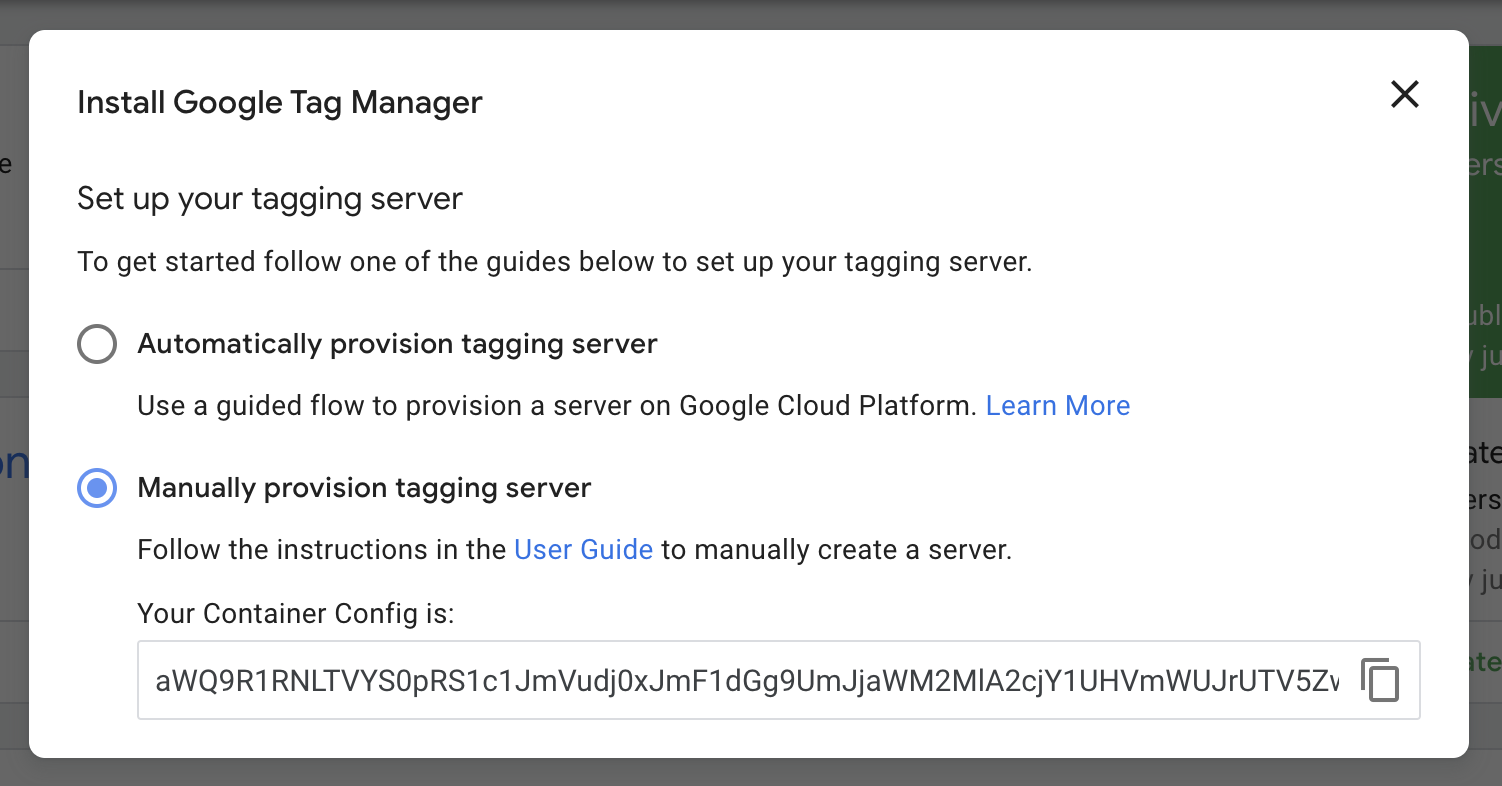
- In the Install Google Tag Manager dialog, select Manually provision tagging server.
- Leave this window open; you will need the Container Config later.
Open Google Cloud Console
- Go to Google Cloud Console.
Create a New Project
- Use the project selector and choose New Project.
- Name it (e.g.
company-name-marketing-sgtm). - Click Create and wait for the project to be created.
- Select the new project.
Open Cloud Shell
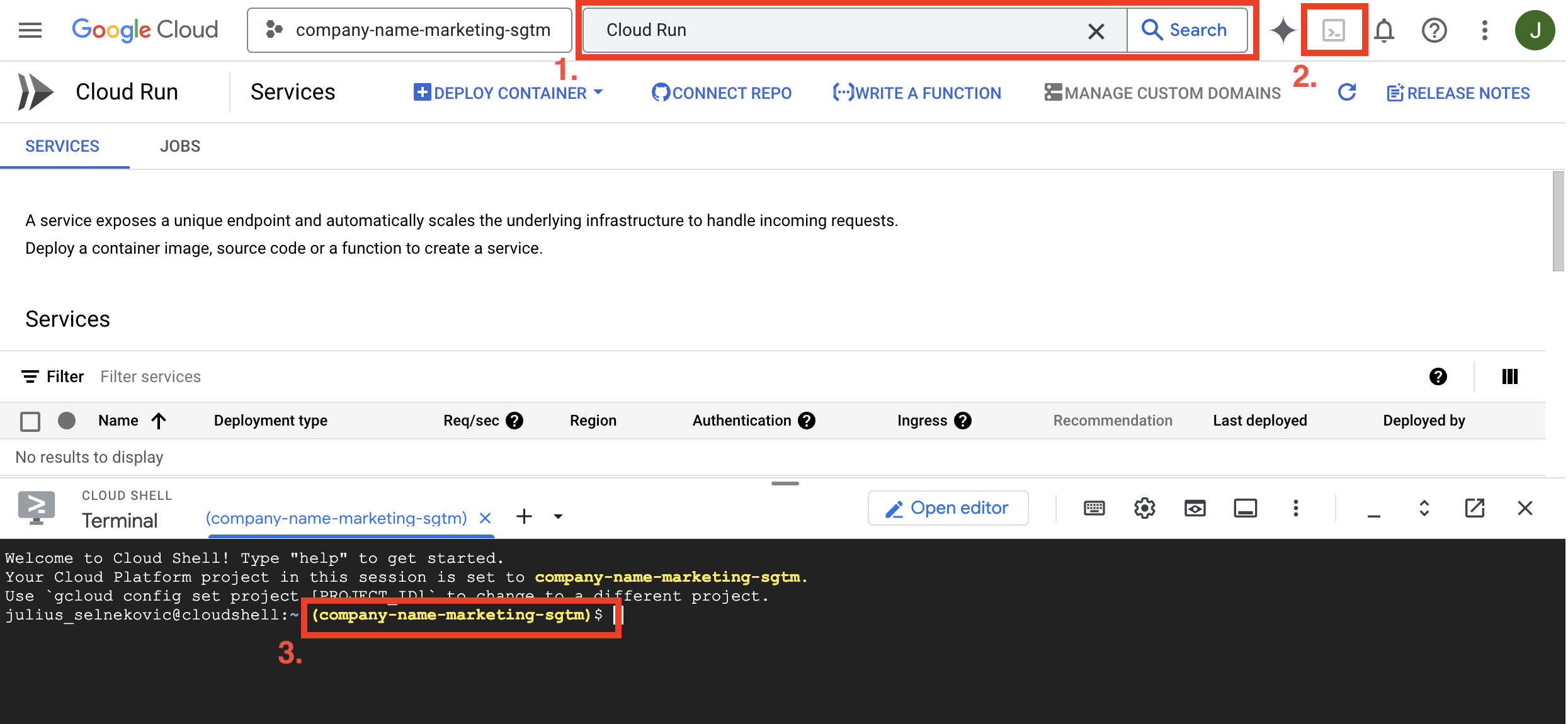
- In the console, go to Cloud Run (e.g. via Search).
- Click Activate Cloud Shell.
- Confirm you are in the correct project. If not, run:
gcloud config set project [your-project-id].
Deploy Server-Side GTM
- In Cloud Shell, run:
bash -c "$(curl -fsSL https://raw.githubusercontent.com/selnekovic/sgtm-shell-script/main/sgtm_shell.sh)"- Follow the on-screen prompts to complete the deployment.
- When asked, authorize the script, enable the required APIs, and choose a region for the debugging and production server. I typically use europe-west4 (Netherlands) when planning custom domain mapping.
Note: Custom domain mapping is supported only in certain regions. See Google’s documentation on mapping custom domains for details. To get the most out of server-side GTM, map the server to a custom domain (e.g. using the Load Balancer approach described in the companion post).
Verify Deployment
- After a successful run, refresh the Cloud Run page and confirm that both sGTM server instances (debug and production) are running.
Configure Server Container URL
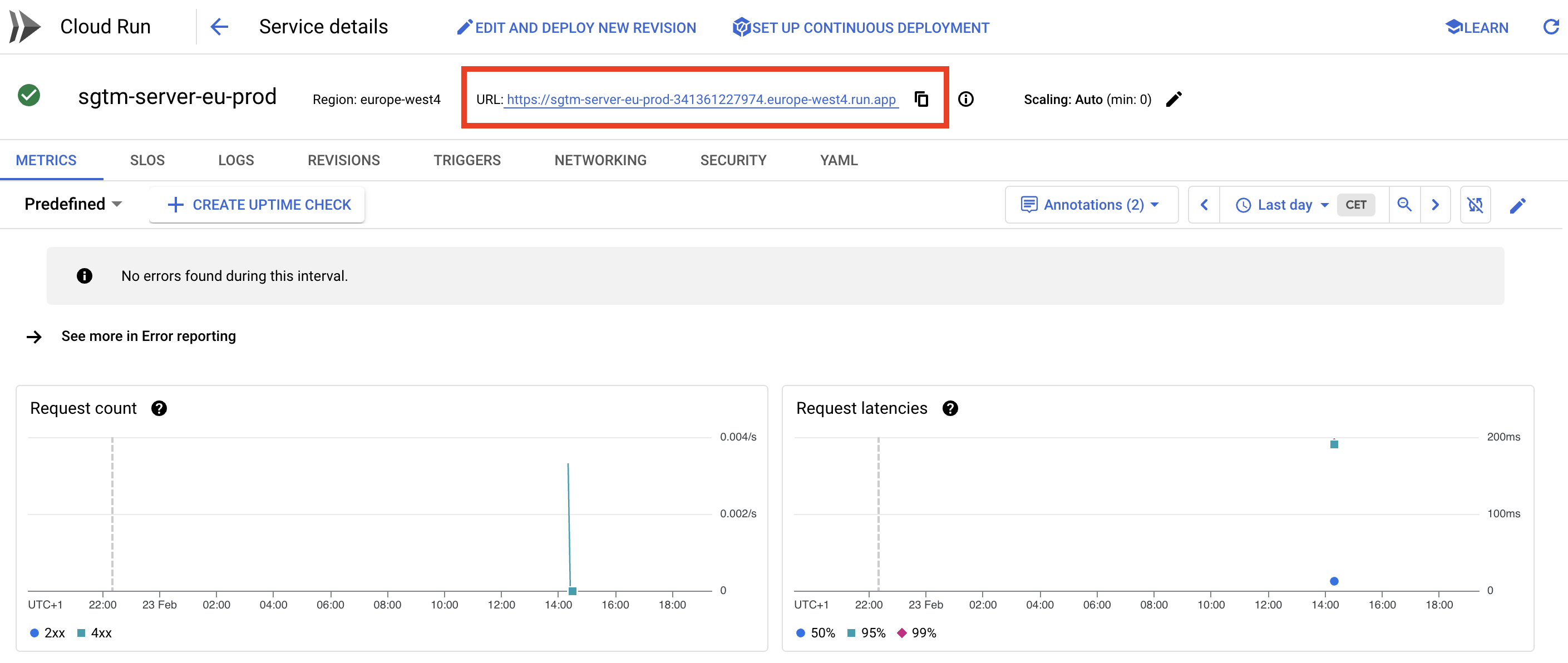
- In Cloud Run, open the production service.
- Copy the Cloud Run service URL from the console.
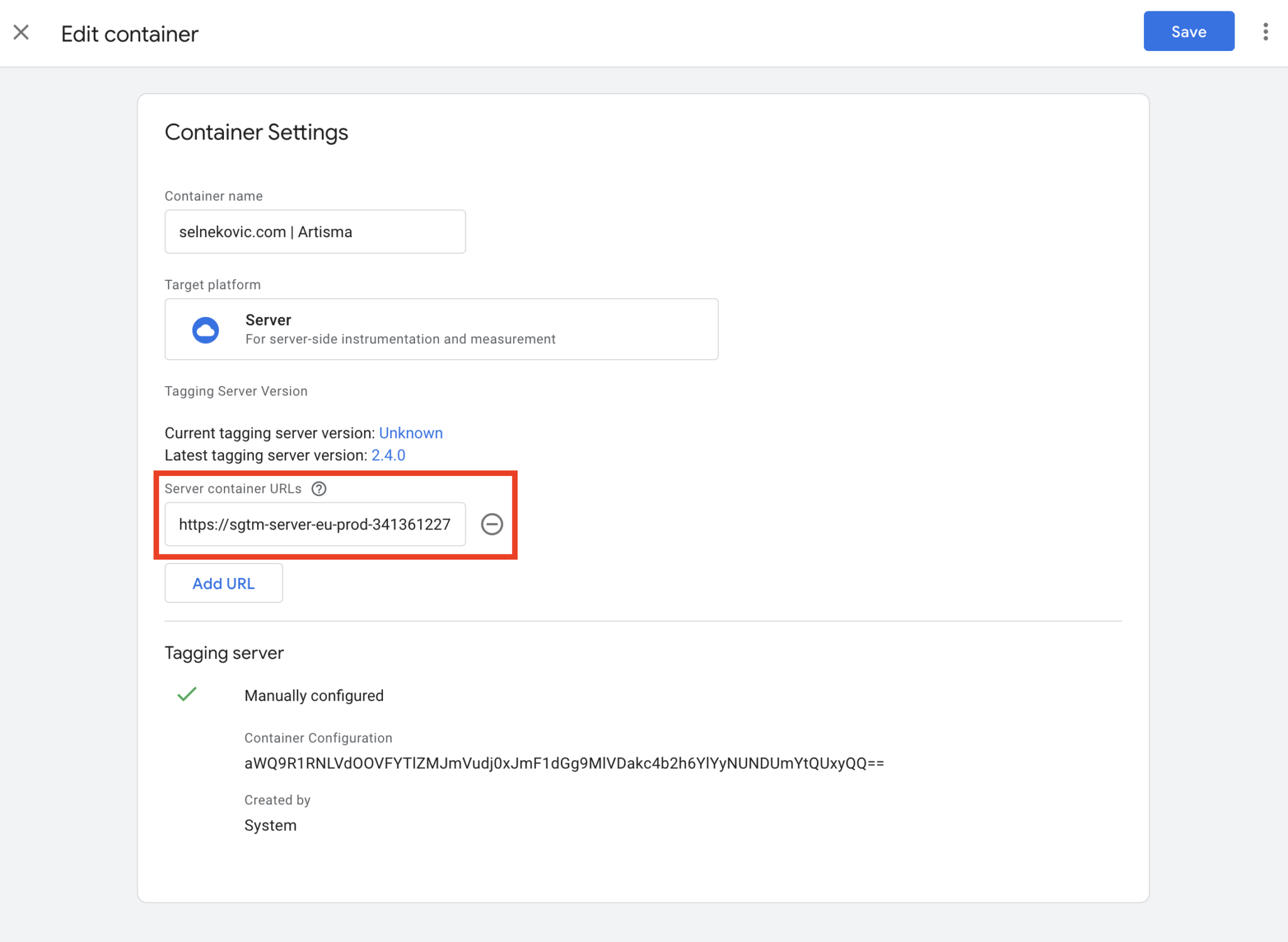
- In your server GTM container, go to Admin → Container Settings.
- Paste the Cloud Run service URL into the Server Container URL field and save.
Your server-side GTM container is now deployed and reachable at that URL. Configure your client-side GTM to send tags to this server container URL (and optionally map a custom domain via a Load Balancer for a cleaner setup).