manual server-side gtm deployment on azure
If you want to run server-side Google Tag Manager on Microsoft Azure, you will quickly find guides based on Azure App Services. That approach works, but when I built my own setup I chose Azure Container Apps instead.
The main reason is that server-side GTM is typically deployed in a serverless container environment, similar to Google Cloud Run. Azure Container Apps follow that model much more closely than App Services.
To simplify deployment, I made a bash script that automates the Azure CLI steps required to deploy a server-side GTM container.
Table of contents
What the deployment script does
The goal of the script is to automate the Azure CLI steps required to deploy server-side GTM. Instead of creating each resource manually, you can run the script and provide a few inputs. The script then:
- Registers required Azure resource providers
- Prompts for location — you choose from a list of regions (e.g. westeurope, eastus) by number or enter a custom Azure region
- Prompts for your container config string — the config from your server-side GTM container (GTM → Container → copy config)
- Creates the resource group
- Creates a Log Analytics workspace and Container Apps environment
- Deploys two Container Apps
- Preview
- Production
When it finishes, the script prints the production URL and the health-check URL (/healthy).
How to run
- Open Azure Cloud Shell and select Bash.
- Run the script from this repository:
bash -c "$(curl -fsSL https://raw.githubusercontent.com/selnekovic/sgtm-bash-script-azure/main/sgtm_bash_azure.sh)"- Choose location (number or name) and enter your container config string when prompted.
- Confirm to create resources and deploy. When finished, the script prints the production URL and health-check URL.
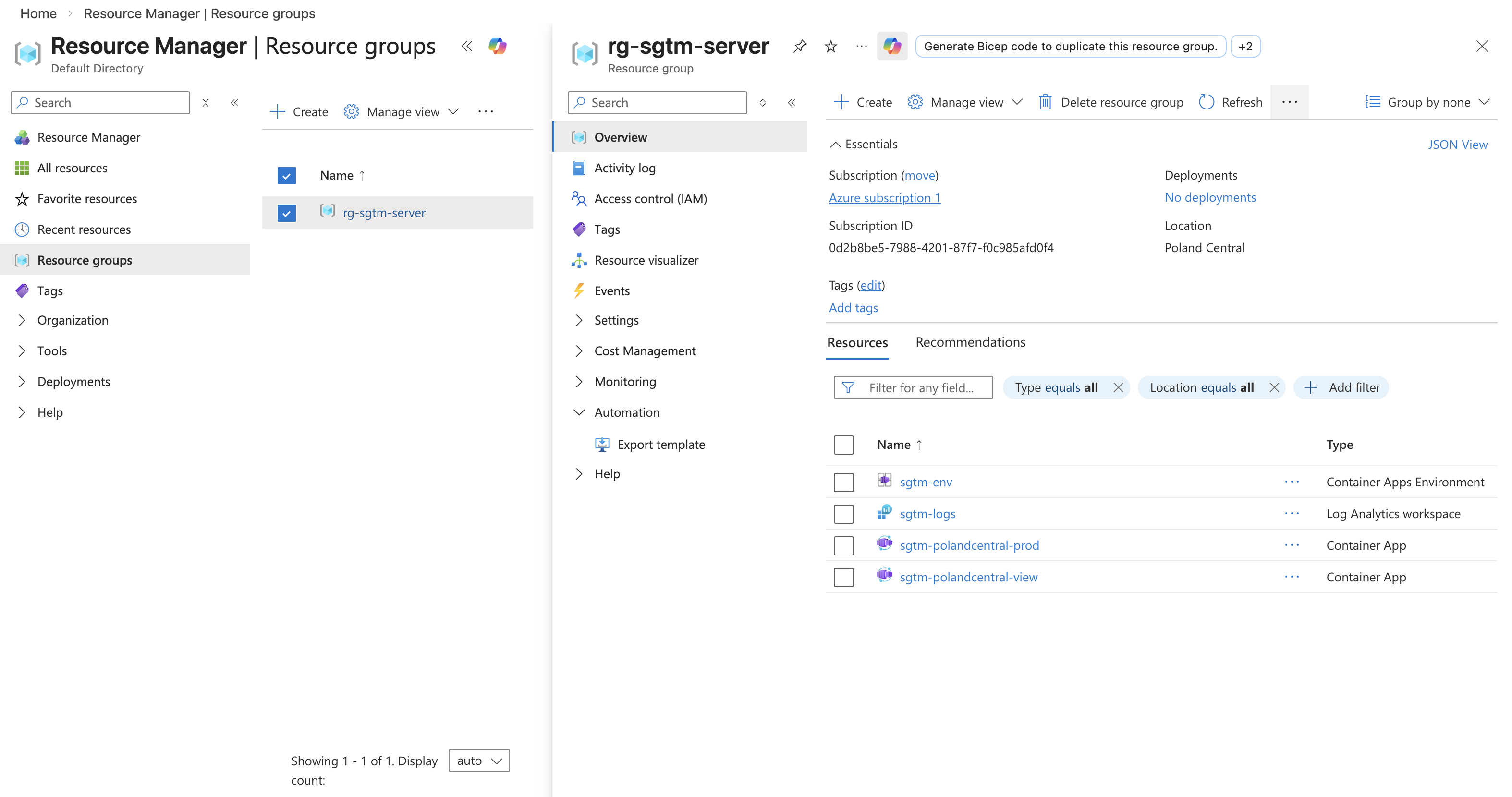
Step-by-step guide
If you want more control — for example to tweak settings or run commands one section at a time — use the step-by-step manual: sgtm_bash_azure_steps.sh. It contains the same deployment as commented, copy-paste commands you can run in Azure Cloud Shell. You set your location and container config at the top, then execute each block (resource group, Log Analytics, environment, preview app, production app). It is aligned with the one-click script so the resulting setup is identical.
Free tier issue I encountered
During testing I ran into an Azure limitation on the free tier. When deploying, resource creation failed due to capacity limits. The deployment eventually worked after:
- deleting the resource group and waiting
- switching to a different region
If you are using a pay-as-you-go subscription you likely will not encounter this issue. But when testing on the free tier, switching regions can resolve deployment problems.
Subdomain mapping
You should map the production server to your subdomain (e.g. sst.yourdomain.com). If you need help with the mapping, reach out.